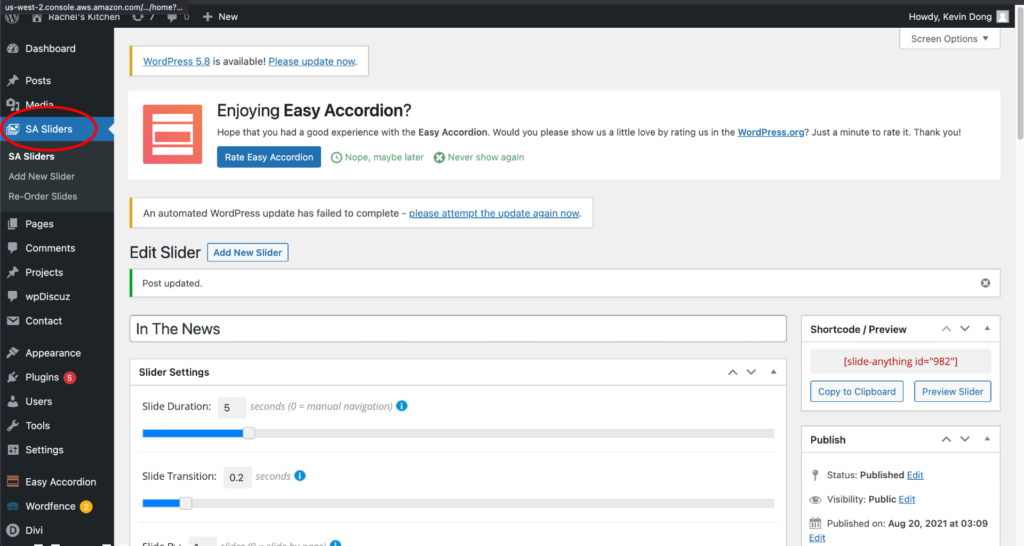
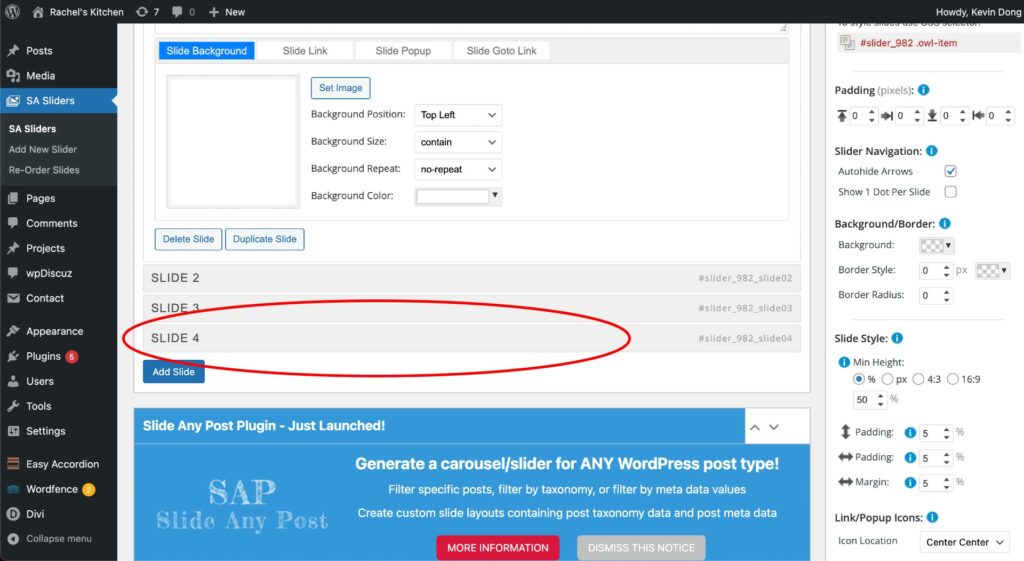
Scroll down to last Slide (right now it’s Slide 4)
Click on Slide (4) to open it up
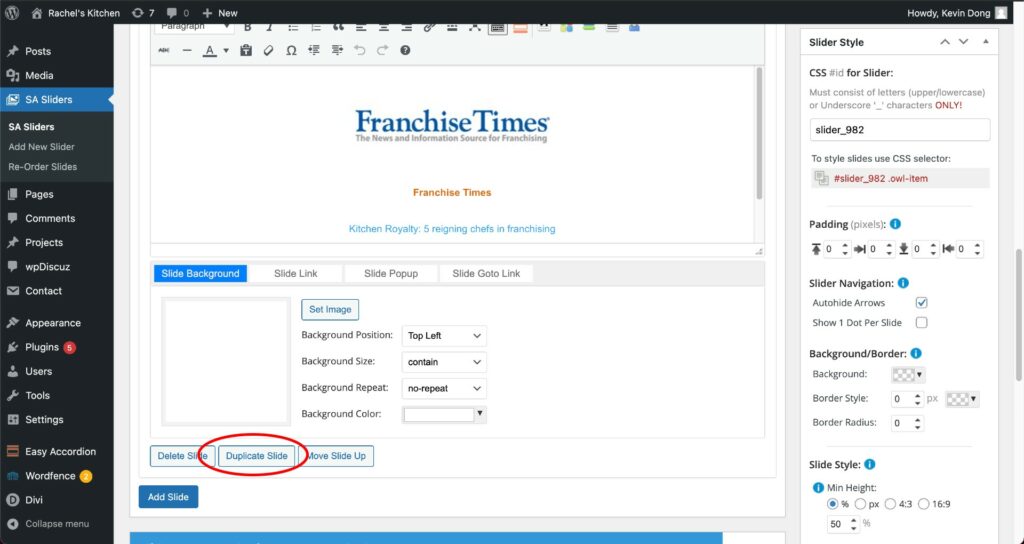
Click on “Duplicate Slide”
Click “OK” button to confirm to make a duplicate slide
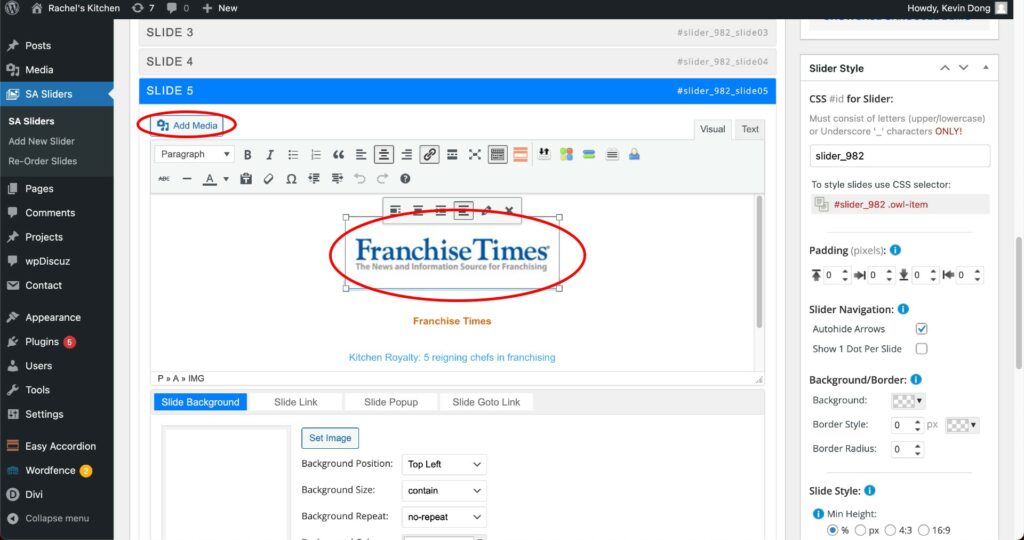
The page will refresh to the top. Scroll back down to the duplicated slide (for this instance Slide 5)
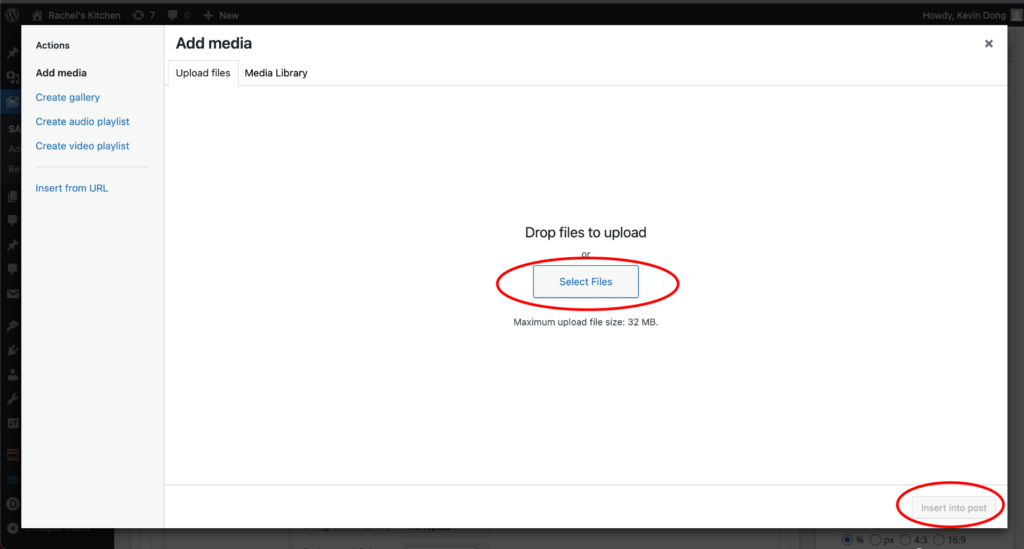
Click on the “Article Logo Image” and click add media
Click on “Upload Image” to upload an image of the news article logo and click “Insert Into Post”
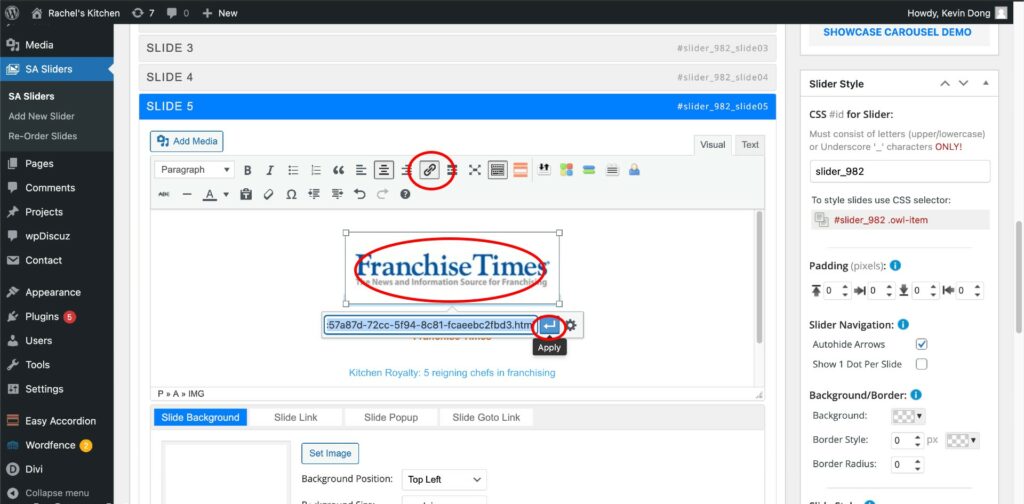
Now, change the link of the Image by clicking on the Image to select it and then click on the “link” symbol to add article link. Click “Apply” button to save link.
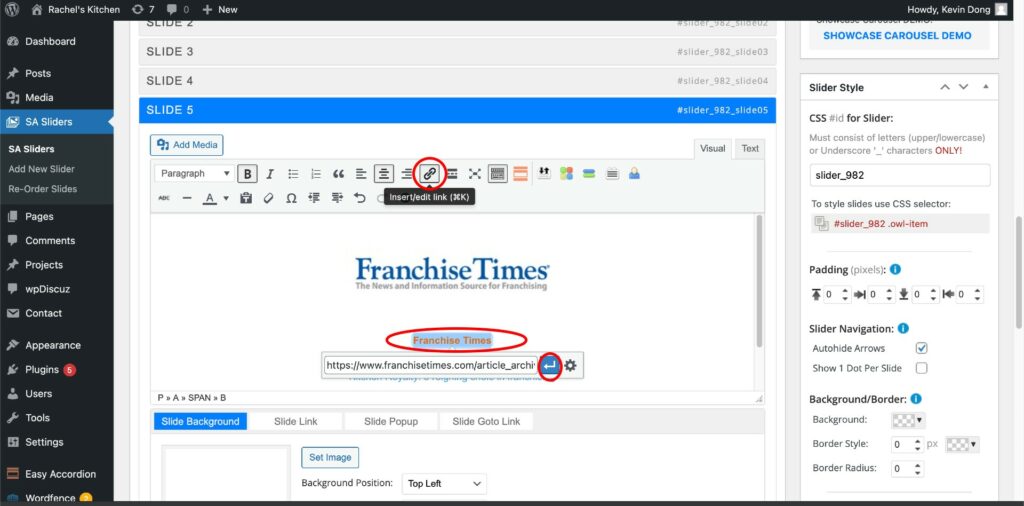
Triple click the orange title to change title. Once the title has been changed. Triple click on it again to select entire title text and click on the “link” symbol to edit article link to the correct one.
Do the same step for “body text”
For “Read Full Article”, triple click on the text to select entire text and click on “link” symbol to add article link.
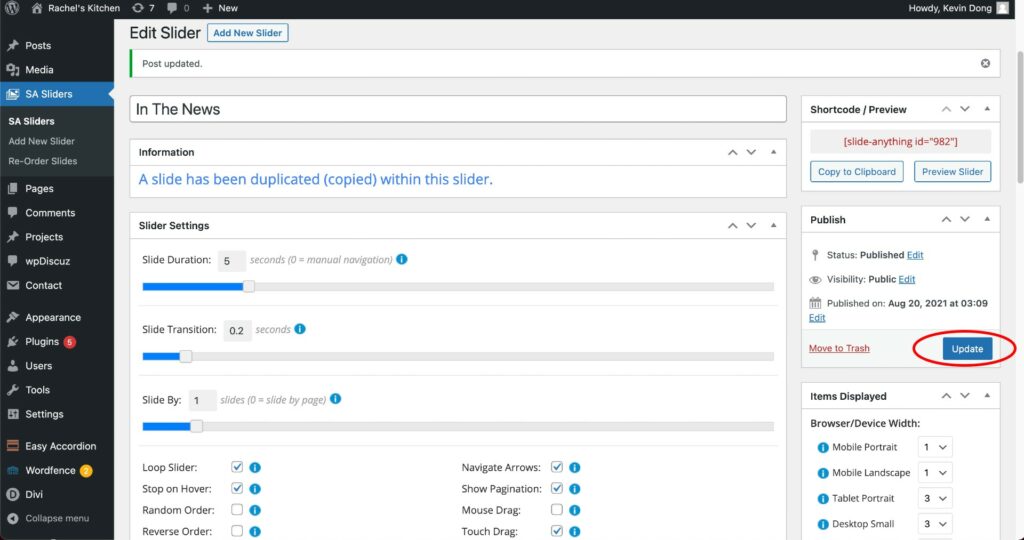
Scroll back up and click “Update” on right sidebar
X
Are you ready to turn your industry experience into a restaurant of your own with Rachel's Kitchen?